
iCan i6 User Guide for
Blood Glucose Monitoring
Download the Product Brochure
Download the Product User Guide
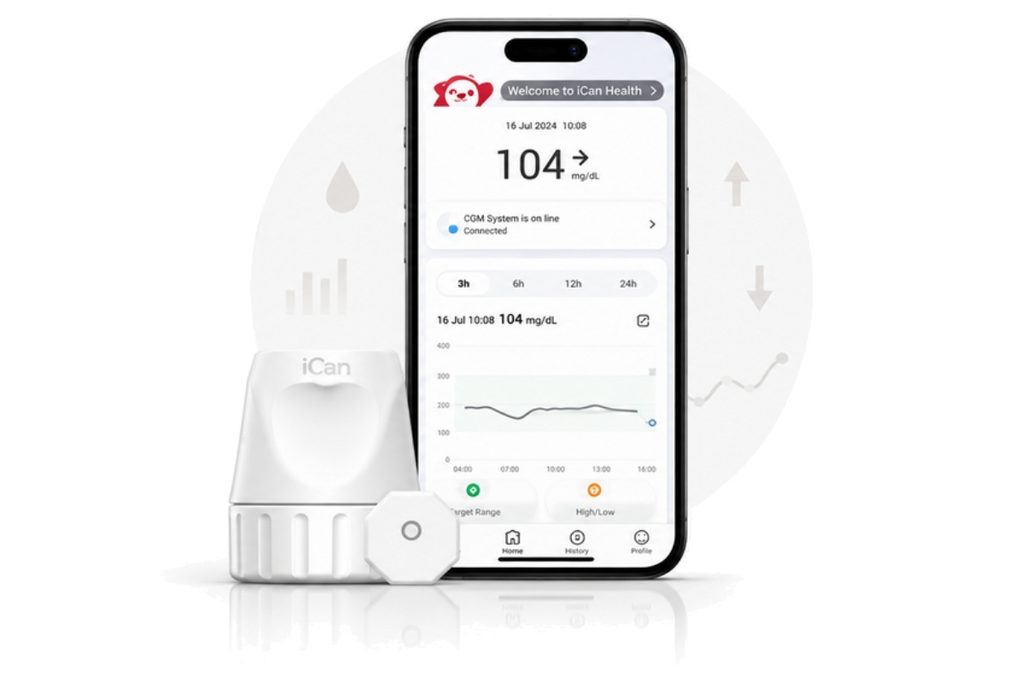
Start Using iCan i6 with Ease
Continuous Glucose Monitoring in Simple Steps
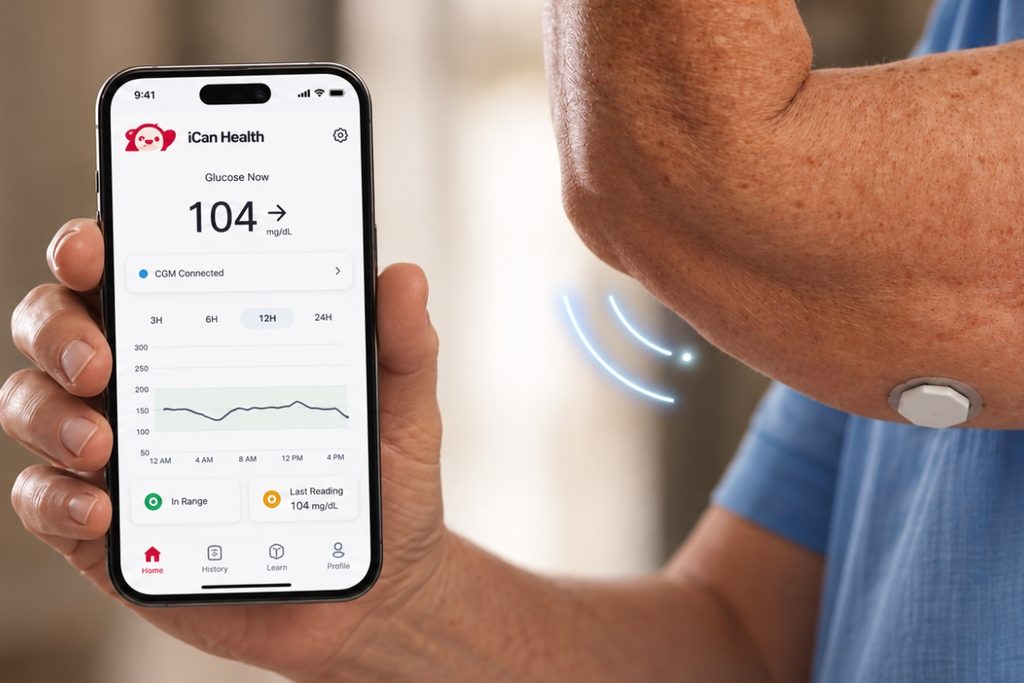
With the iCan i6 Continuous Glucose Monitoring System, you can track your glucose readings throughout the day using a small sensor worn on your body and connected to the iCan app on your smartphone via Bluetooth.
The sensor sends a new reading to the app every 3 minutes, allowing you to see your current glucose level, track its direction of change, and monitor the effects of food, physical activity, and medications on your readings—all without the need for repeated finger pricks.
The Continuous Glucose Monitoring (CGM) system measures glucose levels in the interstitial fluid beneath the skin rather than directly from a blood sample.
How to Use the iCan i6 Device
1. Download the iCan Health App
ابدأ بتنزيل تطبيق iCan Health On your smartphone. The app is the main interface for receiving sensor readings and monitoring your glucose levels in real time.
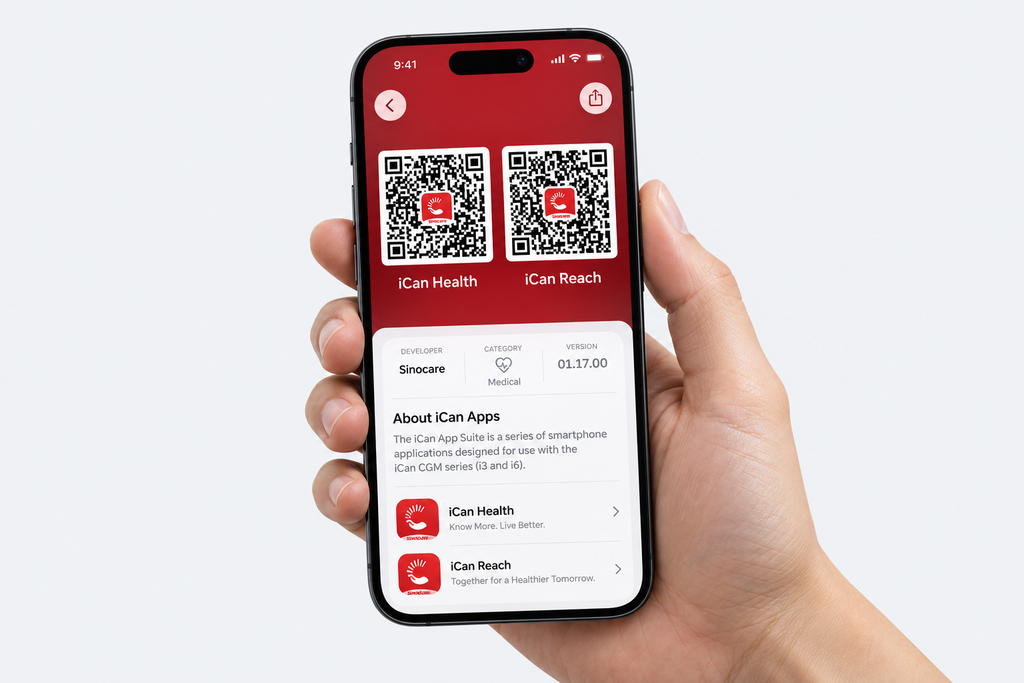
Use the QR Code for your phone’s operating system to download the available version of the app:
- Scan the QR Code, then download the app file and follow the on-screen installation instructions.
- Scan the QR Code to download the TestFlight app, then scan the QR Code again and allow it to open in TestFlight. Next, select the latest available version of the iCan Health app and install it.
It is always recommended to download the official version first and use the beta version only if the app is not available in your local App Store.
2. Create Your Account and Set Up Your Phone
After installing the app:
- Open the iCan Health app.
- Create a new account or log in to your existing account.
- Allow the permissions required for the app to function properly.
- Enable Bluetooth on your phone.
- Allow the app to send notifications so you can receive glucose alerts.
- Make sure your phone is connected to the internet while setting up your account and starting the sensor.
Keep your phone close to the sensor during the pairing process, and do not turn off Bluetooth or prevent the app from running in the background.
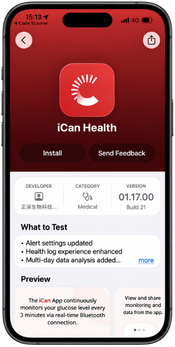
Select Latest version From the app and download it. ➡️
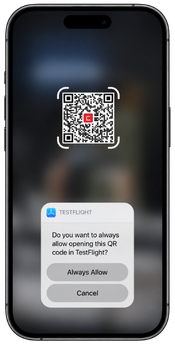
Scan the QR code again, and select "Always Allow" When requested. ➡️
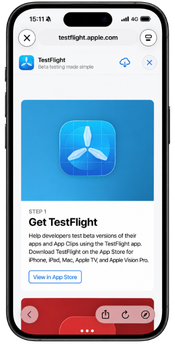
Scan the QR Code to download and install the TestFlight app. ➡️
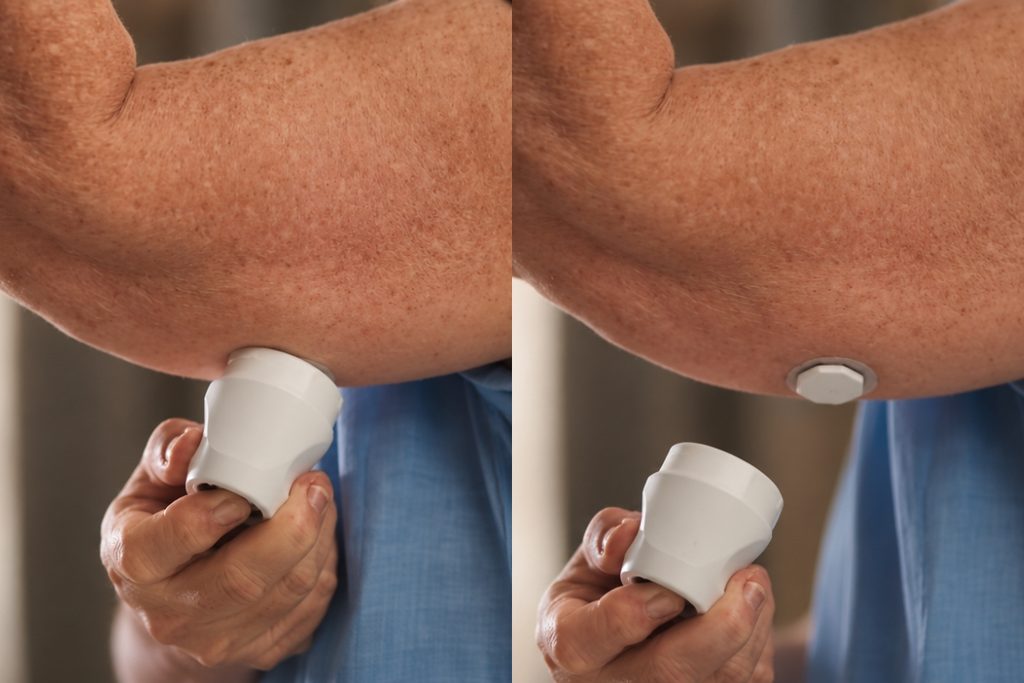
3. Choose the Sensor Placement Site
The placement site for the iCan i6 sensor varies depending on age:
- Ages 2 to 12: The sensor should be placed on the abdomen only.
- Ages 13 and older: The sensor can be placed on the abdomen or the back of the upper arm.
Choose a flat, healthy area of skin, and avoid:
- Wounds and Scars.
- Areas of Redness or Irritation.
- Raised Moles.
- Areas exposed to continuous friction from clothing.
- Areas that are repeatedly pressed on or slept on.
Change the sensor placement site each time, and do not place the new sensor directly over the previous site.
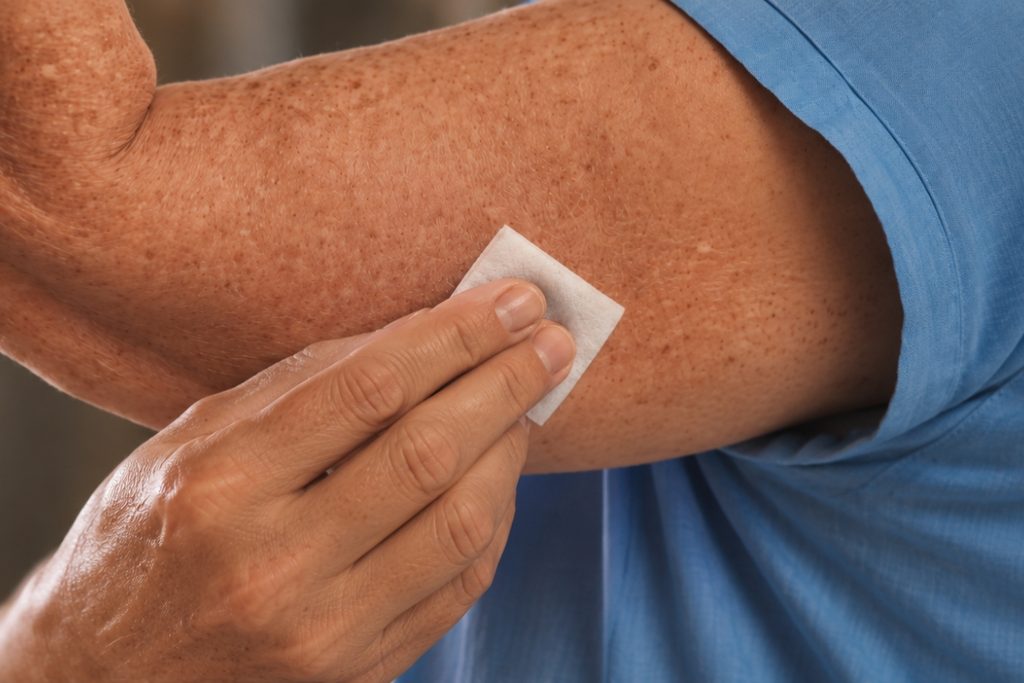
4. Clean the Sensor Placement Site
Wash your hands thoroughly, then clean the sensor placement site and allow the skin to dry completely.
The Skin Should Be:
- Clean.
- Completely Dry.
- Free of Creams, Oils, and Fragrances.
Proper skin preparation helps secure the adhesive and keep the sensor stable throughout the wear period.
6. Connect the Sensor to the iCan Health App
Open the app and select **Start a New Sensor**, then follow the on-screen instructions to add and pair the sensor.
The app may ask you to scan the sensor’s QR Code or enter the sensor details provided on the package. Therefore, do not discard the sensor packaging until the pairing process is complete and you have confirmed that the monitoring session has started successfully.
After Pairing:
- Keep Bluetooth Turned On.
- Keep Your Phone Within Connection Range.
- Wait for the sensor warm-up period shown in the app to complete.
- Your glucose reading will appear automatically once initialization is complete.
Log Your Daily Events
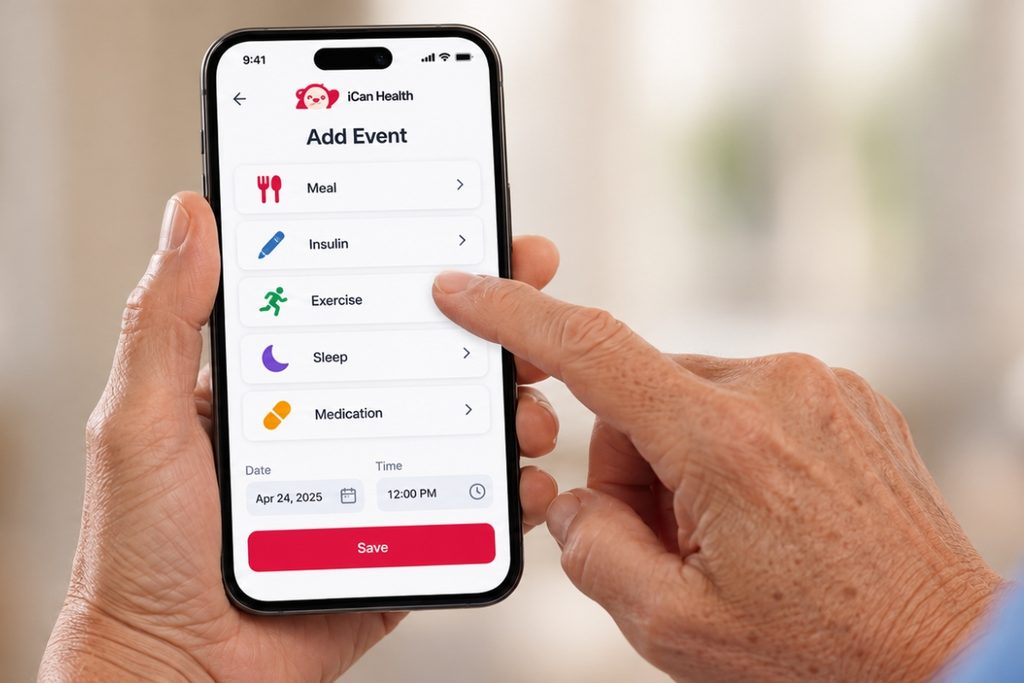
To gain a clearer understanding of the factors affecting your glucose levels, the app allows you to log:
- Meals.
- Exercise.
- Insulin Doses.
- Medications.
- Additional Blood Glucose Measurements.
- Daily Notes.
Linking these events to your glucose readings helps you understand how your body responds and supports more informed discussions with your healthcare provider.

Share Your Readings with People You Trust
Family members or caregivers can use the app. iCan Reach To monitor the glucose data you choose to share with them.
The app allows caregivers to:
- View Glucose Readings Remotely.
- Monitor Glucose Trends.
- Receive Shared Alerts.
- Provide Timely Support.
Data can be shared with up to 10 family members, friends, or healthcare providers, and an iCan Reach user can receive data from up to 10 users.
The sensor wearer uses the app. iCan Health to monitor their readings, while it is used... iCan Reach by the people they choose to share their data with.
During the Sensor Wear Period.
The iCan i6 sensor lasts for up to 15 days and automatically sends readings to your phone via Bluetooth.
To Maintain Optimal Performance:
- Do not remove the sensor or attempt to reposition it after application.
- Regularly Check the Adhesive Edges.
- Avoid pulling the sensor or bumping it against doors and clothing.
- Keep your phone nearby and Bluetooth turned on
- Avoid force-closing the app or restricting its background activity.
- Monitor the connection status and alerts inside the app.
The sensor has a water-resistant rating. IP28...and can withstand immersion up to a depth of two meters for up to two hours. However, avoid rubbing the sensor directly or exposing it to strong friction while showering or swimming.
When the sensor session ends,
The app will display the remaining usage time and notify you when the sensor session ends.
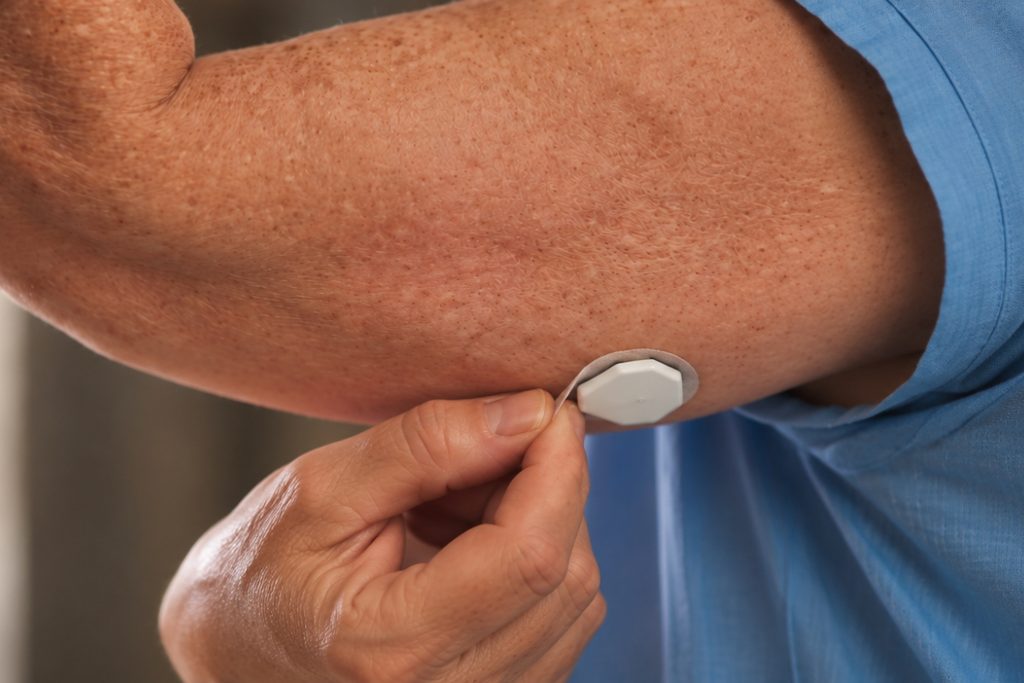
To remove the sensor:
- Gently lift the edge of the adhesive.
- Slowly peel the adhesive off the skin.
- Dispose of the sensor and applicator according to the product instructions and local regulations.
- Choose a different location when applying the new sensor.
The sensor and applicator are for single use only and must not be reused.
Frequently Asked Questions
Does the iCan i6 require scanning the sensor every time?
No. After pairing the sensor with the iCan Health app, readings are automatically transmitted to your phone via Bluetooth without the need to scan the sensor for every reading.
How often are the readings updated?
The system records a new glucose reading every 3 minutes and displays it via the iCan Health app or a compatible iCan view device.
How long does the sensor last?
The iCan i6 sensor lasts up to 15 days from the start of the monitoring session.
What is the measuring range?
The measuring range is between 36 and 450 mg/dL.، أو ما يعادل 2.0 إلى 25.0 مليمول/لترIf the reading is outside this range, the app displays an alert that the glucose level is too high or too low.
What should I do if the connection is lost?
Make sure Bluetooth is turned on, required app permissions are granted, and your phone is near the sensor. Open the app and wait a moment for the connection to be restored. If the issue persists, refer to the user manual or contact technical support.
Can I make treatment decisions based on the app reading?
Always follow your doctor's instructions and the device user guide. If the reading does not match how you feel, or if symptoms of severe hypoglycemia or hyperglycemia appear, check with a blood glucose meter and follow the treatment plan determined by your healthcare provider.
Important Notice
The iCan i6 system is a continuous glucose monitoring tool and is not a substitute for medical advice or the treatment plan specified by your doctor. Do not adjust insulin or medication doses based on the content of this page alone.
Read the entire user guide included with the device before installation, and follow the instructions and alerts that appear in the iCan Health app. Some features and available downloadable apps may vary depending on the country and system version.
iCan i6 User Guide for
Blood Glucose Monitoring
Download the Product Brochure
Download the Product User Guide
Start Using iCan i6 with Ease
Continuous Glucose Monitoring in Simple Steps
With the iCan i6 Continuous Glucose Monitoring System, you can track your glucose readings throughout the day using a small sensor worn on your body and connected to the iCan app on your smartphone via Bluetooth.
The sensor sends a new reading to the app every 3 minutes, allowing you to see your current glucose level, track its direction of change, and monitor the effects of food, physical activity, and medications on your readings—all without the need for repeated finger pricks.
The Continuous Glucose Monitoring (CGM) system measures glucose levels in the interstitial fluid beneath the skin rather than directly from a blood sample.
How to Use the iCan i6 Device
1. Download the iCan Health App
ابدأ بتنزيل تطبيق iCan Health On your smartphone. The app is the main interface for receiving sensor readings and monitoring your glucose levels in real time.
Use the QR Code for your phone’s operating system to download the available version of the app:
- Scan the QR Code, then download the app file and follow the on-screen installation instructions.
- Scan the QR Code to download the TestFlight app, then scan the QR Code again and allow it to open in TestFlight. Next, select the latest available version of the iCan Health app and install it.
It is always recommended to download the official version first and use the beta version only if the app is not available in your local App Store.
2. Create Your Account and Set Up Your Phone
After installing the app:
- Open the iCan Health app.
- Create a new account or log in to your existing account.
- Allow the permissions required for the app to function properly.
- Enable Bluetooth on your phone.
- Allow the app to send notifications so you can receive glucose alerts.
- Make sure your phone is connected to the internet while setting up your account and starting the sensor.
Keep your phone close to the sensor during the pairing process, and do not turn off Bluetooth or prevent the app from running in the background.
Select Latest version From the app and download it. ➡️
Scan the QR code again, and select "Always Allow" When requested. ➡️
Scan the QR Code to download and install the TestFlight app. ➡️
3. Choose the Sensor Placement Site
The placement site for the iCan i6 sensor varies depending on age:
- Ages 2 to 12: The sensor should be placed on the abdomen only.
- Ages 13 and older: The sensor can be placed on the abdomen or the back of the upper arm.
Choose a flat, healthy area of skin, and avoid:
- Wounds and Scars.
- Areas of Redness or Irritation.
- Raised Moles.
- Areas exposed to continuous friction from clothing.
- Areas that are repeatedly pressed on or slept on.
Change the sensor placement site each time, and do not place the new sensor directly over the previous site.
4. Clean the Sensor Placement Site
Wash your hands thoroughly, then clean the sensor placement site and allow the skin to dry completely.
The Skin Should Be:
- Clean.
- Completely Dry.
- Free of Creams, Oils, and Fragrances.
Proper skin preparation helps secure the adhesive and keep the sensor stable throughout the wear period.
6. Connect the Sensor to the iCan Health App
Open the app and select **Start a New Sensor**, then follow the on-screen instructions to add and pair the sensor.
The app may ask you to scan the sensor’s QR Code or enter the sensor details provided on the package. Therefore, do not discard the sensor packaging until the pairing process is complete and you have confirmed that the monitoring session has started successfully.
After Pairing:
- Keep Bluetooth Turned On.
- Keep Your Phone Within Connection Range.
- Wait for the sensor warm-up period shown in the app to complete.
- Your glucose reading will appear automatically once initialization is complete.
Log Your Daily Events
To gain a clearer understanding of the factors affecting your glucose levels, the app allows you to log:
- Meals.
- Exercise.
- Insulin Doses.
- Medications.
- Additional Blood Glucose Measurements.
- Daily Notes.
Linking these events to your glucose readings helps you understand how your body responds and supports more informed discussions with your healthcare provider.
Share Your Readings with People You Trust
Family members or caregivers can use the app. iCan Reach To monitor the glucose data you choose to share with them.
The app allows caregivers to:
- View Glucose Readings Remotely.
- Monitor Glucose Trends.
- Receive Shared Alerts.
- Provide Timely Support.
Data can be shared with up to 10 family members, friends, or healthcare providers, and an iCan Reach user can receive data from up to 10 users.
The sensor wearer uses the app. iCan Health to monitor their readings, while it is used... iCan Reach by the people they choose to share their data with.
During the Sensor Wear Period.
The iCan i6 sensor lasts for up to 15 days and automatically sends readings to your phone via Bluetooth.
To Maintain Optimal Performance:
- Do not remove the sensor or attempt to reposition it after application.
- Regularly Check the Adhesive Edges.
- Avoid pulling the sensor or bumping it against doors and clothing.
- Keep your phone nearby and Bluetooth turned on
- Avoid force-closing the app or restricting its background activity.
- Monitor the connection status and alerts inside the app.
The sensor has a water-resistant rating. IP28...and can withstand immersion up to a depth of two meters for up to two hours. However, avoid rubbing the sensor directly or exposing it to strong friction while showering or swimming.
When the sensor session ends,
The app will display the remaining usage time and notify you when the sensor session ends.
To remove the sensor:
- Gently lift the edge of the adhesive.
- Slowly peel the adhesive off the skin.
- Dispose of the sensor and applicator according to the product instructions and local regulations.
- Choose a different location when applying the new sensor.
The sensor and applicator are for single use only and must not be reused.
Frequently Asked Questions
Does the iCan i6 require scanning the sensor every time?
No. After pairing the sensor with the iCan Health app, readings are automatically transmitted to your phone via Bluetooth without the need to scan the sensor for every reading.
How often are the readings updated?
The system records a new glucose reading every 3 minutes and displays it via the iCan Health app or a compatible iCan view device.
How long does the sensor last?
The iCan i6 sensor lasts up to 15 days from the start of the monitoring session.
What is the measuring range?
The measuring range is between 36 and 450 mg/dL.، أو ما يعادل 2.0 إلى 25.0 مليمول/لترIf the reading is outside this range, the app displays an alert that the glucose level is too high or too low.
What should I do if the connection is lost?
Make sure Bluetooth is turned on, required app permissions are granted, and your phone is near the sensor. Open the app and wait a moment for the connection to be restored. If the issue persists, refer to the user manual or contact technical support.
Can I make treatment decisions based on the app reading?
Always follow your doctor's instructions and the device user guide. If the reading does not match how you feel, or if symptoms of severe hypoglycemia or hyperglycemia appear, check with a blood glucose meter and follow the treatment plan determined by your healthcare provider.
Important Notice
The iCan i6 system is a continuous glucose monitoring tool and is not a substitute for medical advice or the treatment plan specified by your doctor. Do not adjust insulin or medication doses based on the content of this page alone.
Read the entire user guide included with the device before installation, and follow the instructions and alerts that appear in the iCan Health app. Some features and available downloadable apps may vary depending on the country and system version.